Clipchamp

Clipchamp is Microsoft’s cloud-based video editor, user-friendly application and ideal for business teams who need quick, polished videos and easy sharing via Microsoft 365.

Summary

Strengths

Limitations

Comments

Clipchamp offers a traditional video creation environment with a flexible, multi-track timeline. Its AI features are currently limited to text-to-speech and subtitle generation.

Use the Tool Finder to compare this tool with others based on features.

AI features 🟡
  • Writing scripts 🟡: Clipchamp suggests using Microsoft Copilot, Microsoft’s conversational AI assistant, to draft scripts or storyboards for your video. However, Copilot’s output is not directly connected to Clipchamp, and there is currently no way to directly generate an editable video proposal from the suggested text or visuals. In other words, you have to manually recreate the proposed content within the Clipchamp interface.
  • Text-to-speech : Clipchamp provides realistic AI voiceover generation in over 80 languages. Some voices can be customized with emotion settings (neutral, enthusiastic, excited), pitch (low to high) and pace (slow to fast) to match your desired tone.
  • AI media generation : Clipchamp refers to the AI image generator in Microsoft Designer for generating new images. Native prompt-to-video synthesis is not provided.
  • Speaking avatars ⛔: Clipchamp does not provide an avatar generator.
  • Subtitle generation : The ‘autocaptions’ feature generates subtitles in multiple languages. These subtitles can be customized with a variety styling options. Captions can also be exported in .SRT format. 
  • Subtitle translation : Clipchamp currently does not offer built-in auto-translation between languages within a single project. There’s no feature to auto-translate an English transcript into French, German or other languages inside the editor.
  • Stock media library : Clipchamp provides millions of royalty-free videos, images, music, sound effects, GIFs, stickers and backgrounds.
  • Background removal : It is possible to remove and customize the background of an image.
  • Whiteboard/doodle drawing style : There are no hand-drawn “whiteboard arm” styles or animations available.
  • Screen, webcam and voice recording : Record & create captures screen, camera or both and drops the recording onto the timeline.
  • Reusable templates : Hundreds of video templates in different formats and styles are available. Users also have the ability to save a project as a reusable template and share it with others.
  • Bulk video generation from templates : Mass rendering based on a template in combination with a spreadsheet or database is not available.
  • Project organization : Users can create folders to organize their Clipchamp projects.
  • Export formats and resolutions ✅: Clipchamp provides exports in MP4 in 480p, 720p, 1080p and 4K. For short videos under 15 seconds, GIF export is also possible.
  • Project sharing and permissions : In Clipchamp for Work, you can click the Share dropdown in the editor and grant colleagues View or Edit access, just like sharing a Word or PowerPoint file.
  • External video reviewing 🟡: In Clipchamp for Work, users can leave notes or reactions on the video within the Microsoft Stream or embedded player. (Microsoft announced that they will merge Stream into Clipchamp). This allows basic feedback but does not support frame-precise, time-coded annotations.
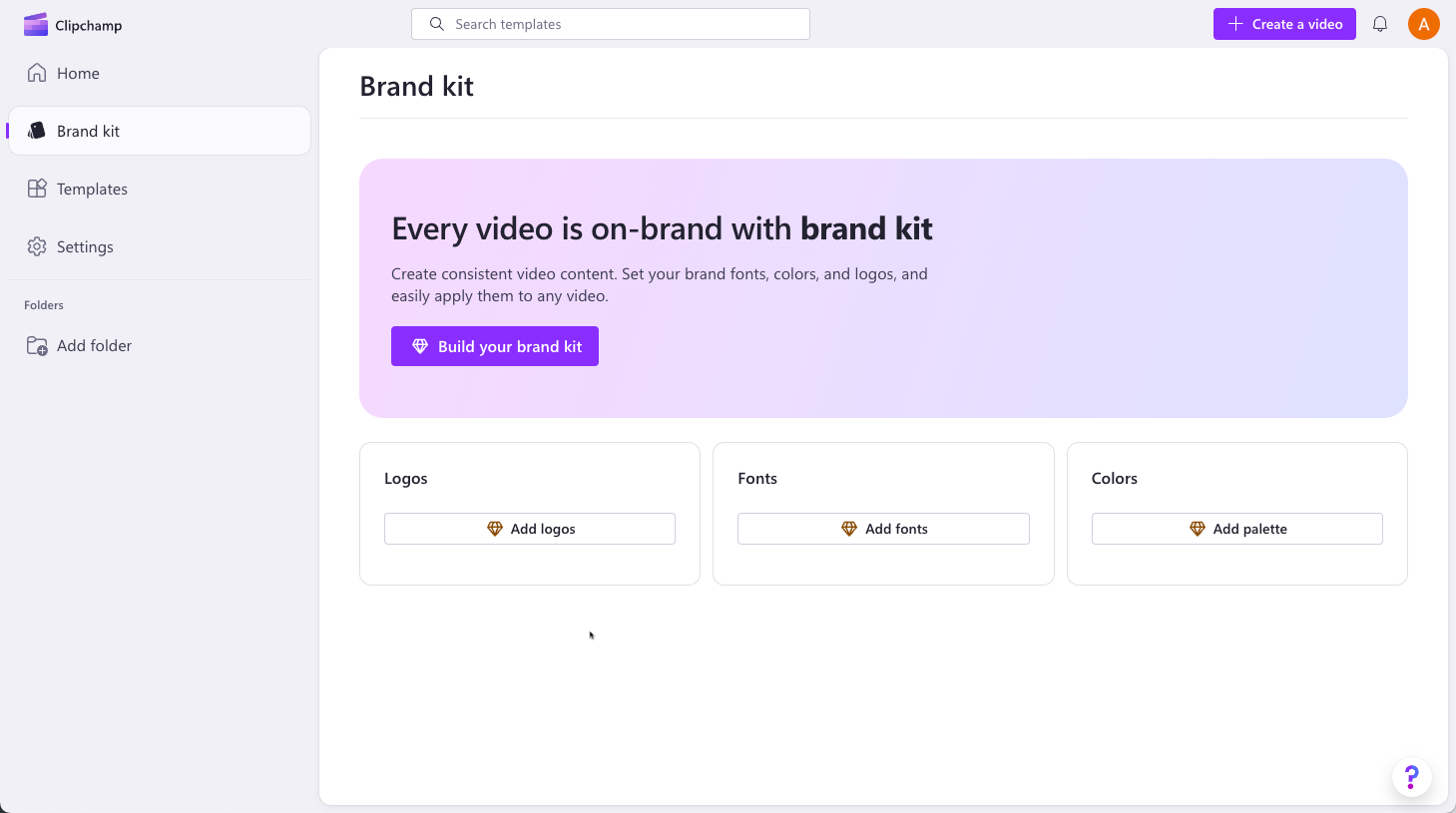
  • Brand settings : Users can create a brand kit for managing logos, colors and fonts. By configuring a SharePoint ‘Organization Assets Library’, admins can publish official brand kits that automatically appear for everyone in the tenant.
  • Third party integrations 🟡: Clipchamp provides integrations with cloud platforms OneDrive, Sharepoint, Dropbox and Google Drive. It also allows direct publishing to YouTube, TikTok and LinkedIn company pages. There is no API available to support custom integrations. 
  • Group or team management  🟡: Clipchamp does not offer its own system for managing users, licenses, groups or workspaces. Instead, all user and content management is handled through standard Microsoft 365 tools like the Admin Portal, SharePoint and OneDrive.
  • Analytics and reporting 🟡: While Clipchamp doesn’t have a dedicated analytics dashboard for admins, admins can retrieve user-level usage and service adoption data through Microsoft 365 usage analytics. 
  • Single sign-on (SSO) : Single sign-on is built in for all work accounts, so users can log in to Clipchamp using their existing Microsoft credentials without needing a separate password.
  • Security and compliance : Clipchamp runs securely in the Microsoft Cloud. All data is protected with encryption and handled in line with GDPR standards. For work users, videos and media are stored safely in their organization’s OneDrive or SharePoint account.
  • Languages and apps ✅: Clipchamp is available as a browser-based application, as well as a desktop app for both Windows and Mac. A responsive iOS app is also available (with Android support still pending). The interface is localized in 81 languages and automatically adapts to your operating system or OneDrive/SharePoint language settings.
  • Pricing: See Clipchamp’s pricing page for up-to-date pricing.
  • Primary target audience and use cases: Clipchamp is designed for SMB marketers, educators, Windows users and Microsoft 365 business teams creating social promotion videos, tutorials, corporate explainers, training videos and quick screen recordings.
  • Brand mission and USP: “Create high-quality videos in minutes, right in your browser or Windows PC.”

  • Key company data:
    • Clipchamp was originally founded in Brisbane Australia in 2013
    • Microsoft acquired Clipchamp in 2021 and fully integrated it into the Microsoft 365 ecosystem. It was also added as a native app within Windows 11.

Have a comment? Spotted an error?